How to create a live poll in ChimeIn
Build a poll, share a join code and watch the votes arrive on screen. A step-by-step guide to running your first live poll with ChimeIn.
The ChimeIn team4 min read
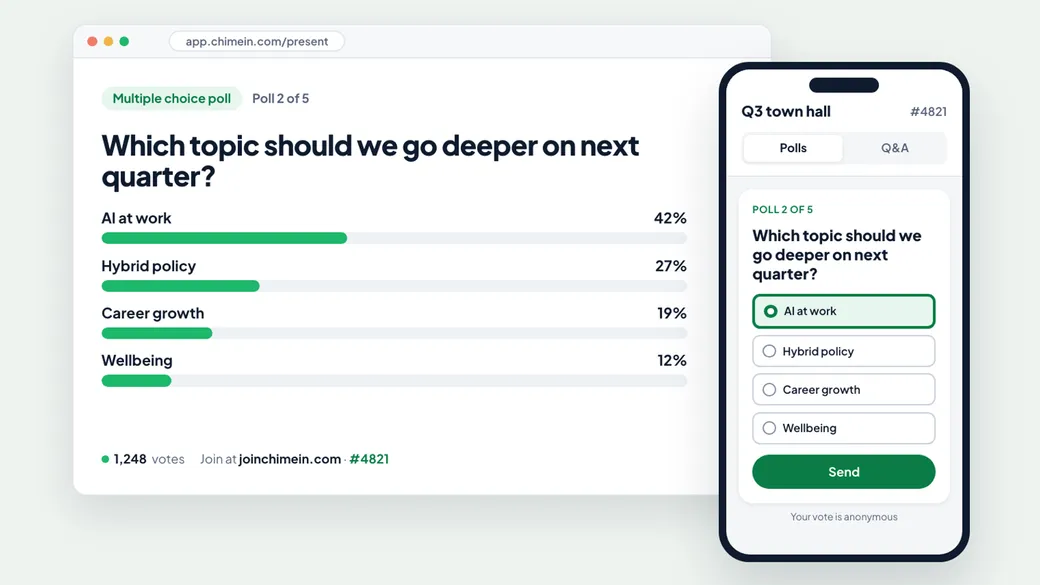
A live poll turns listeners into participants. You ask a question, everyone answers from their phone, and the results appear on your screen as the votes come in. It takes a couple of minutes to set up, and your audience doesn’t need to install anything or create an account.
This guide walks through creating your first poll, sharing it with your audience and presenting the results.
What you need
- A ChimeIn account. We’re opening accounts in waves: join the interest list and we’ll email you when yours is ready.
- A screen your audience can see: a projector, a TV, or a shared screen in a video call.
- Your audience’s phones or laptops. They join from the browser, so there’s nothing to download.
Step 1: Start a new session
Log in at app.joinchimein.com and select New session in the menu.
A session is what your audience joins. It can hold one poll or a whole set of them, so you can prepare everything for a meeting or class in one place. Give it a name in the Session name field at the top. Your audience sees this name when they join, so something like “Q3 town hall” or “Week 4 lecture” works well.
Step 2: Write your question and answer options
Type your question in the large field that says Type your question…. Then fill in the answer options below it. A poll needs at least two options, and you can select Add option to add more, up to ten.
A few tips for questions that get good responses:
- Keep it short. People read the question on a phone, often while you’re talking.
- Stick to three to five options. Too many choices slow people down and spread the results thin.
- Make the options distinct. If two answers overlap, people hesitate and the results are harder to read.
To add another poll to the same session, select Add question. If you’re not ready to present yet, select Save draft and come back to it later from your sessions list.
Step 3: Choose your poll settings
Open Poll settings on a question to fine-tune it:
- Multiple answers. Let participants pick more than one option, and set how many they can choose.
- Description. Add a line of context that participants see under the question, such as “Think about the last month” or “Pick the one you’d use most”.
- Poll results. Choose Visible to show participants the results once they’ve voted, or Hidden to keep results on your screen only. Hiding results is useful when you don’t want early votes to sway later ones.
The Session settings apply to the whole session. Anonymous responses is on by default: participants join with just the code, and no names are asked for or stored. That usually gets you more honest answers. You can also change the text size so your questions are easy to read from across a large space.
Step 4: Start the session and share the code
When your polls are ready, select Start session. This opens your live screen, which shows:
- the join address, app.joinchimein.com/r
- a short session code for your session
- a QR code that takes people straight to your session
Put this screen up where everyone can see it, or select Present full screen. For a slide deck or a printed handout, select Download QR and add the code to your materials.
Step 5: Show the poll and watch the votes come in
Pick a question from the list to put it on screen. This also opens voting. As people answer, the results update live, so you can talk through them as they form.
While a poll is on screen, you’re in control:
- Close voting when you’re ready to discuss the results. Select Reopen voting if latecomers still want to answer.
- Show results to voters or Hide results from voters at any time, whatever you chose in the settings.
- Clear screen to take the poll down while you talk.
- Add a poll on the spot if a new question comes up. Choose Add and show now to ask it straight away, or Add for later to queue it.
Step 6: End the session
When you’re finished, select End session. Participants can no longer vote, and your results stay with the session in your account.
What your participants see
Joining takes a few seconds:
- They scan the QR code, or go to app.joinchimein.com/r and type the session code.
- They select Join. If you turned off anonymous responses, they enter their name first.
- When you show a poll, it appears on their screen. They pick an answer and select Send vote.
Between polls, their screen shows a message that they’re waiting for the host. When you show the next question, it appears automatically. They don’t need to refresh.
Ideas for your first poll
Not sure what to ask? These work in almost any meeting, class or event:
- An icebreaker at the start: “How’s your week going so far?” Easy questions get everyone to join before the ones that matter.
- A priority check in a team meeting: “Which of these should we tackle first?”
- A comprehension check in a class: “Which part of today’s topic is least clear?”
- A decision at a workshop: “Which option should we go with?” Then close voting and discuss the result together.
Already have access? Log in and create your first poll. It takes about two minutes. New to ChimeIn? Join the interest list and we’ll let you know as soon as your account is ready.